Quickstart Guide
This guide will help you create your first architecture diagram in Archyl in just a few minutes.
Step 1: Create an Account
- Go to app.archyl.com
- Sign up using your email or connect with GitHub, GitLab, or Bitbucket
- Verify your email if you signed up with email
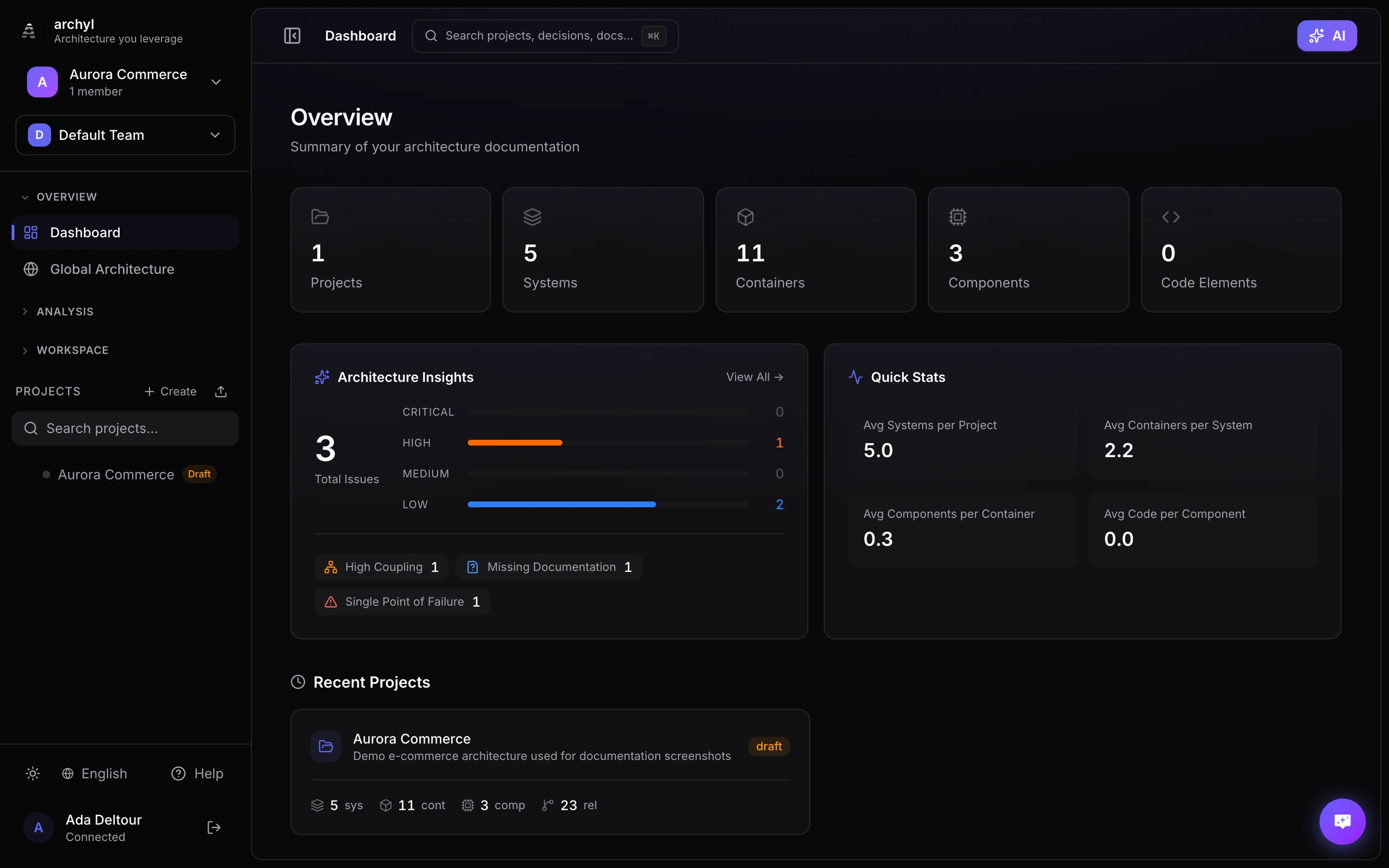
Once signed in, you land on the dashboard — your command center for every project:
Step 2: Create Your First Project
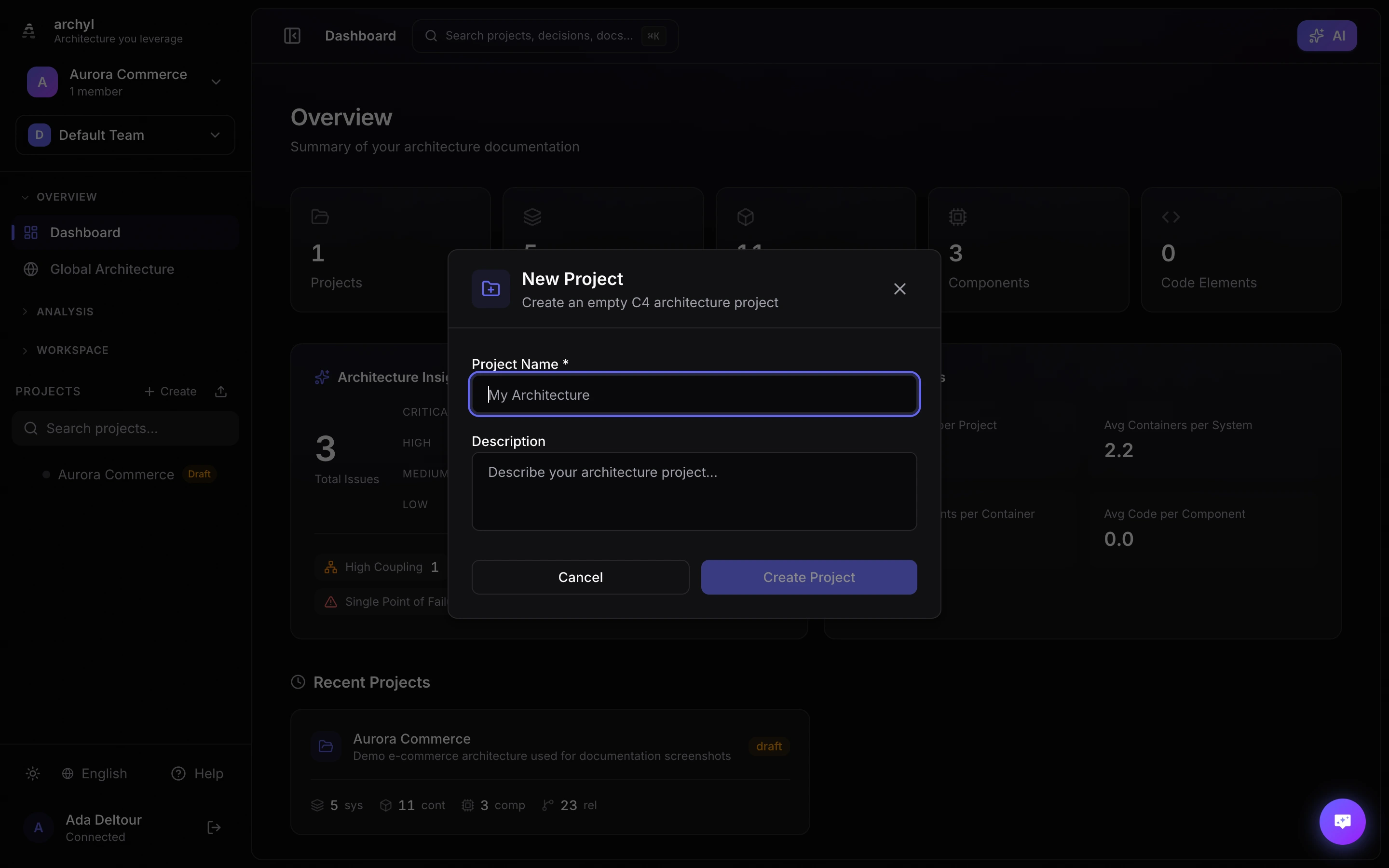
- Click "New Project" on your dashboard
- Enter a name for your project (e.g., "My E-commerce Platform")
- Optionally add a description and tags
- Click "Create Project"
Step 3: Add Your First System
- In your new project, you'll start at the System Context level
- Click the "+" button or right-click on the canvas
- Select "Add System"
- Enter a name (e.g., "E-commerce Platform")
- Add a description of what the system does
Step 4: Add External Systems
Real systems don't exist in isolation. Add external systems your software interacts with:
- Click "+" and select "Add External System"
- Add systems like "Payment Gateway", "Email Service", "CDN"
- These will appear with a different style to show they're external
Step 5: Create Relationships
Show how systems communicate:
- Click on the source system
- Drag from the connection point to the target system
- Add a label describing the relationship (e.g., "Processes payments via API")
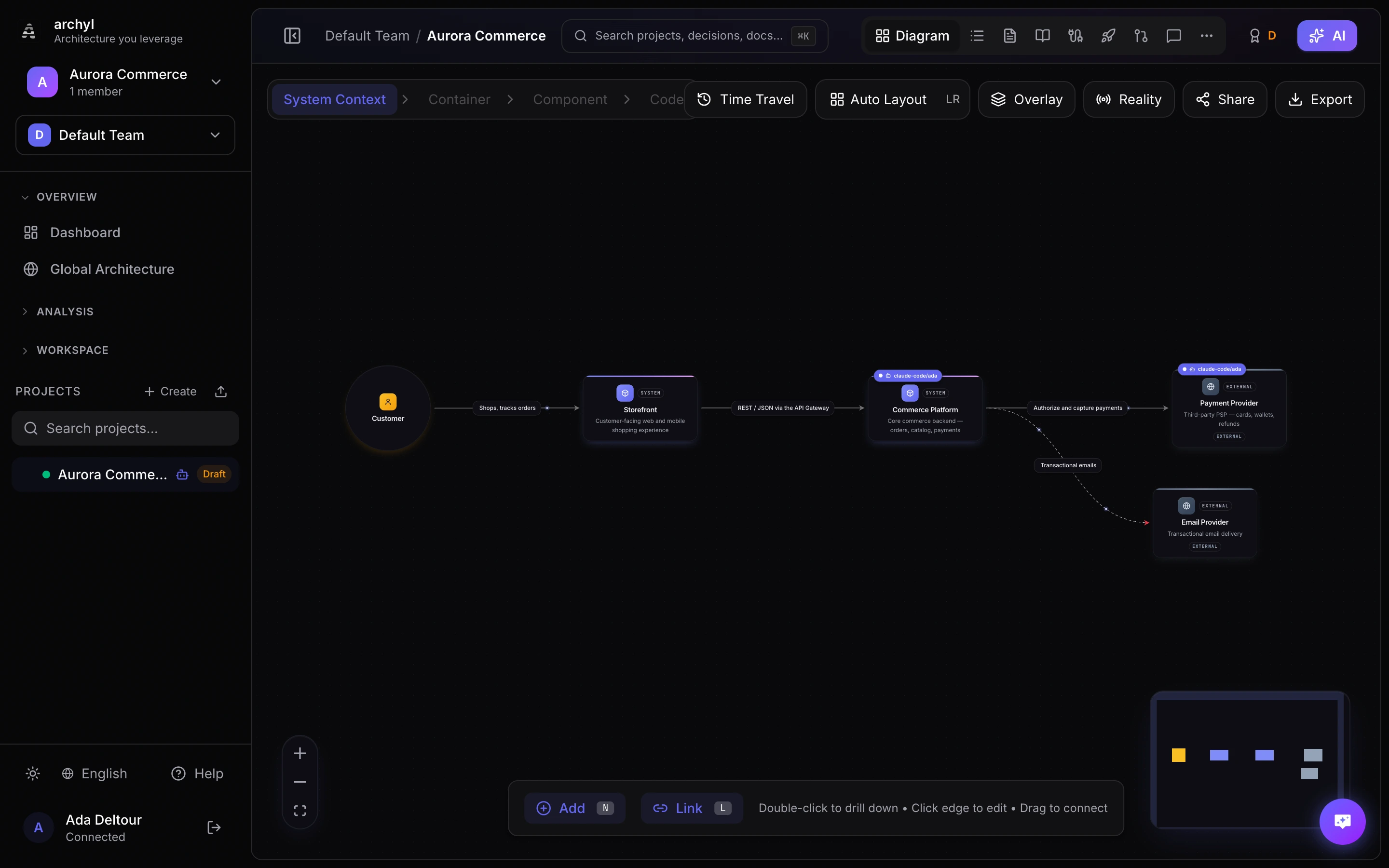
Here is a complete System Context view — people, systems and external providers connected with labeled relationships:
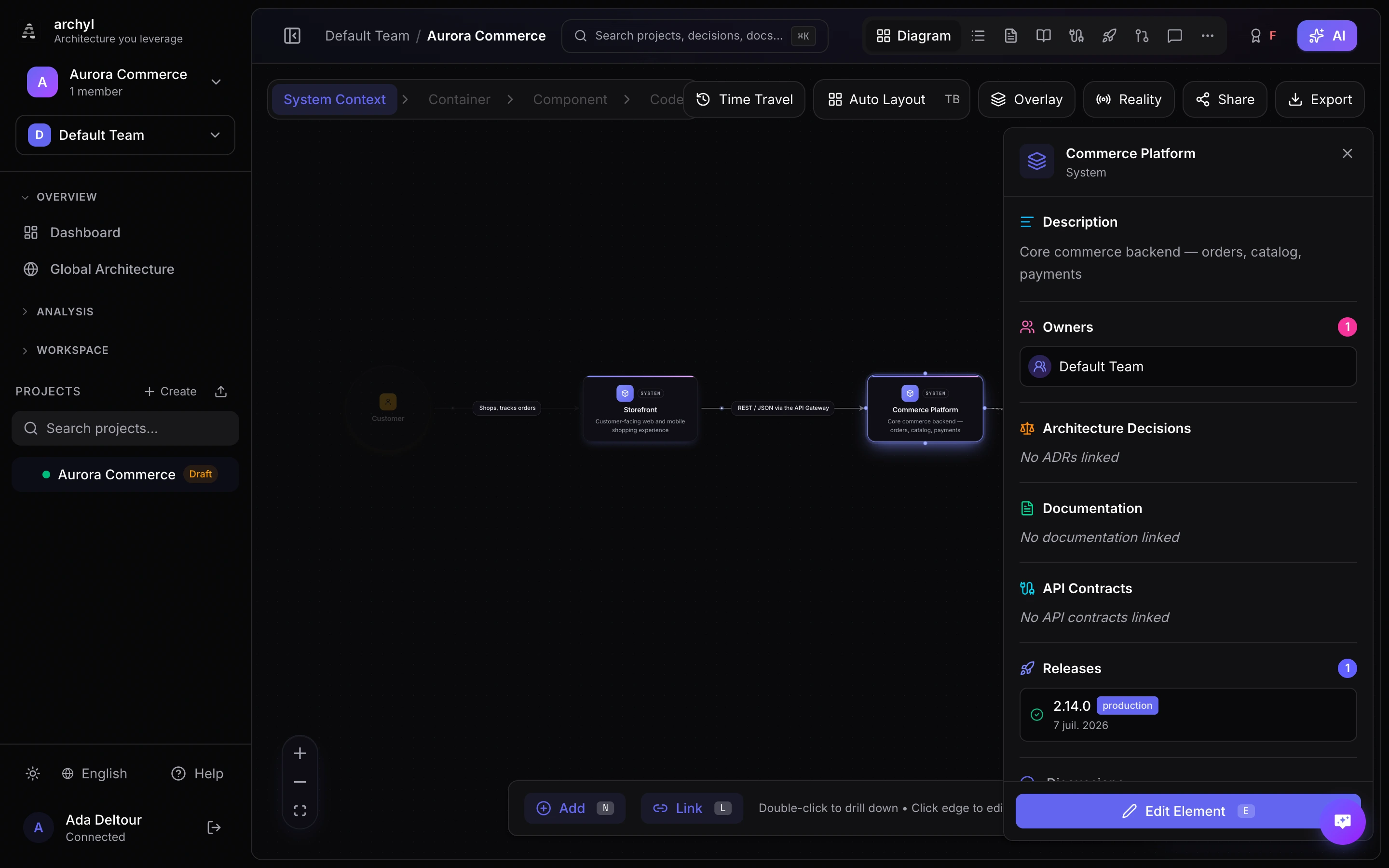
Click any element to open its details — description, owners, linked decisions, documentation and API contracts:
Step 6: Zoom Into Containers
Double-click on your main system to dive into the Container level:
- Add containers like "Web Application", "API Server", "Database"
- Show how they communicate with each other
- Connect them to external systems
Step 7: Connect Your Coding Agent
Once you have a project, the dashboard shows a Put your agents to work block with three steps. They tick themselves as Archyl sees each one happen.
- Click Connect a coding agent. In the window that opens, pick your tool (Claude Code, Cursor, VS Code or OpenAI Codex) and click Create a key.
- Paste what the window gives you: a one-line command for Claude Code, a config file for the others. The key is already in it, and the server URL selects the coding tool profile, a short set of tools built for coding agents.
- Restart your agent and ask it to list your Archyl projects. The window says Your agent is connected as soon as the first call arrives.
- Give the agent a first task. The window suggests a prompt that makes it call
plan_work, then open a work session under the harness before it changes code. Starting a managed agent run in Archyl completes the step too.
To hide the block, click the cross in its corner. The full list of supported tools and their settings is on your profile, under MCP server.
Next Steps
Congratulations! You've created your first architecture diagram. Here's what to explore next:
- Connect a Repository - Let AI discover your architecture automatically
- AI Discovery - Learn how AI analyzes your codebase
- Team Collaboration - Invite your team members
- Export & Share - Share your diagrams with stakeholders
Tips for Success
- Start high-level: Begin with System Context before diving into details
- Use clear names: Name systems and containers descriptively
- Add descriptions: Future you (and your team) will thank you
- Iterate: Architecture documentation is a living thing - update it as your system evolves